DoiTech International
Camivex app icon

Camivex

Watch, record and annotate what a camera is seeing — your device's camera or a camera on the network — on Windows, macOS, iOS and Android.

Download Camivex

See it in action

Captured on the phone app. Switch to Desktop above to see the desktop version.

Captured on Windows and Mac. Switch to Phone above to see the mobile version.

Live view & sources

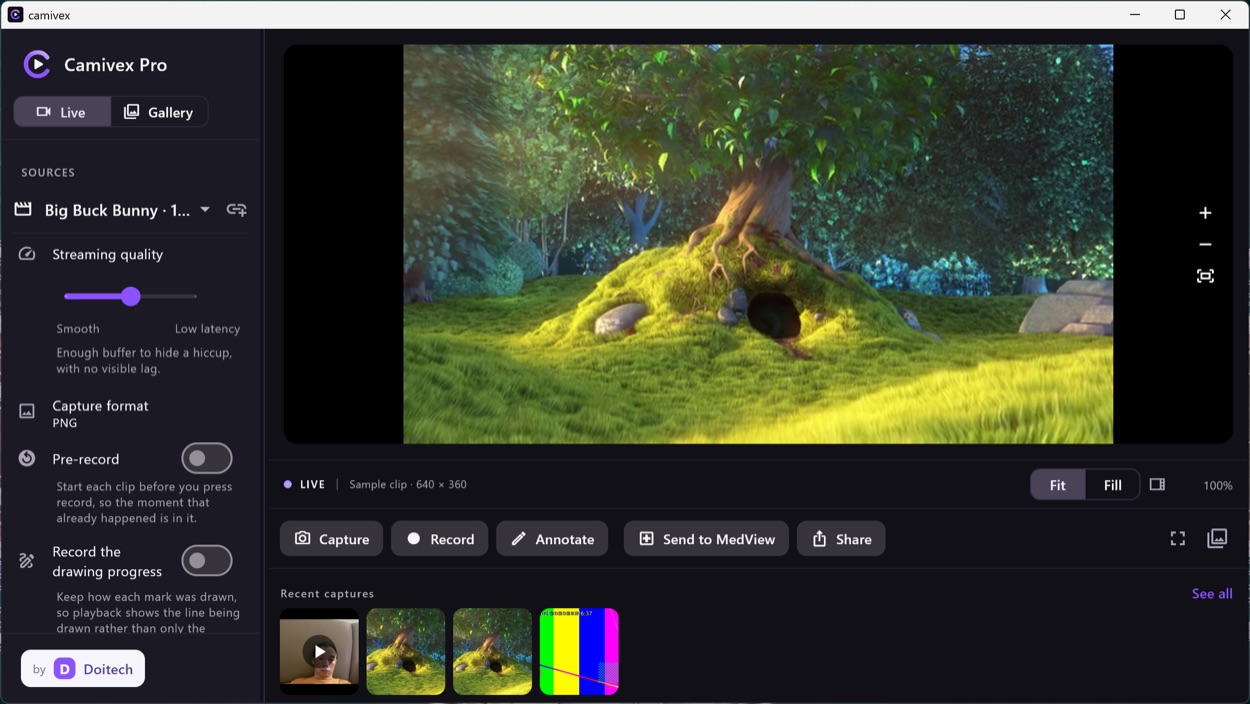
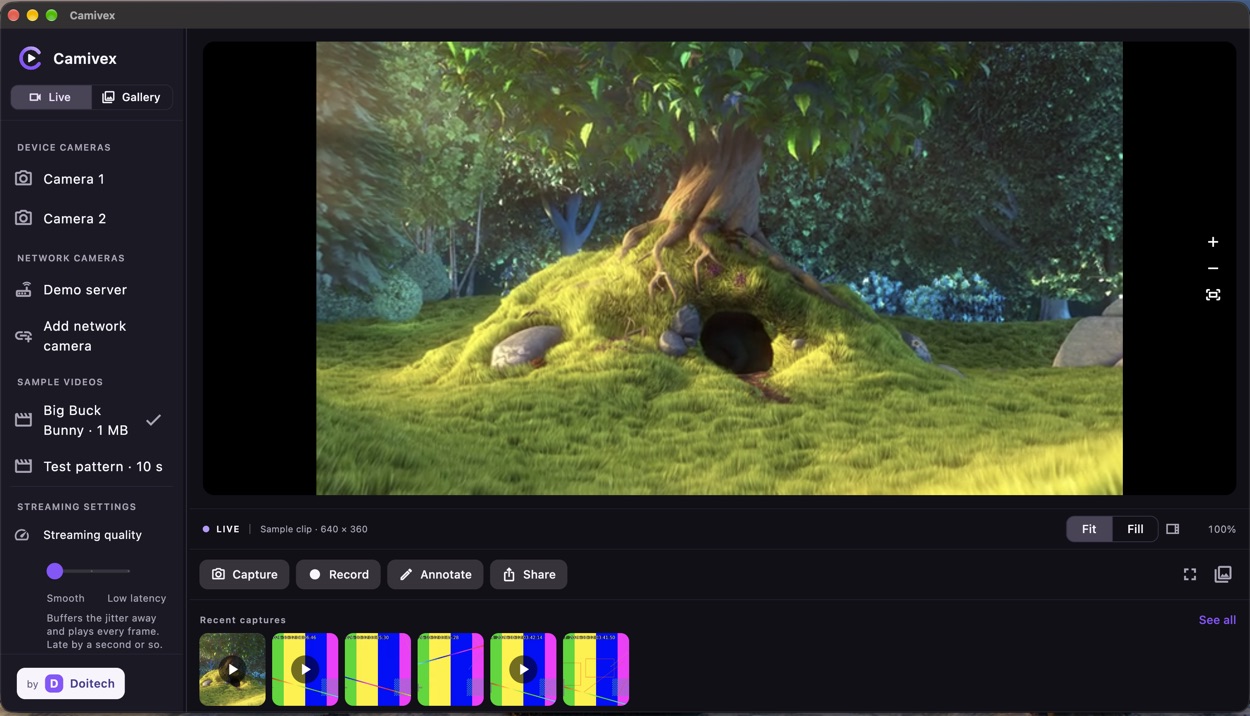
Point the app at your device's camera, or at a camera on the network, and the live picture fills the screen. Capture, record and annotate sit within thumb reach. Nothing is uploaded to a cloud or an account.

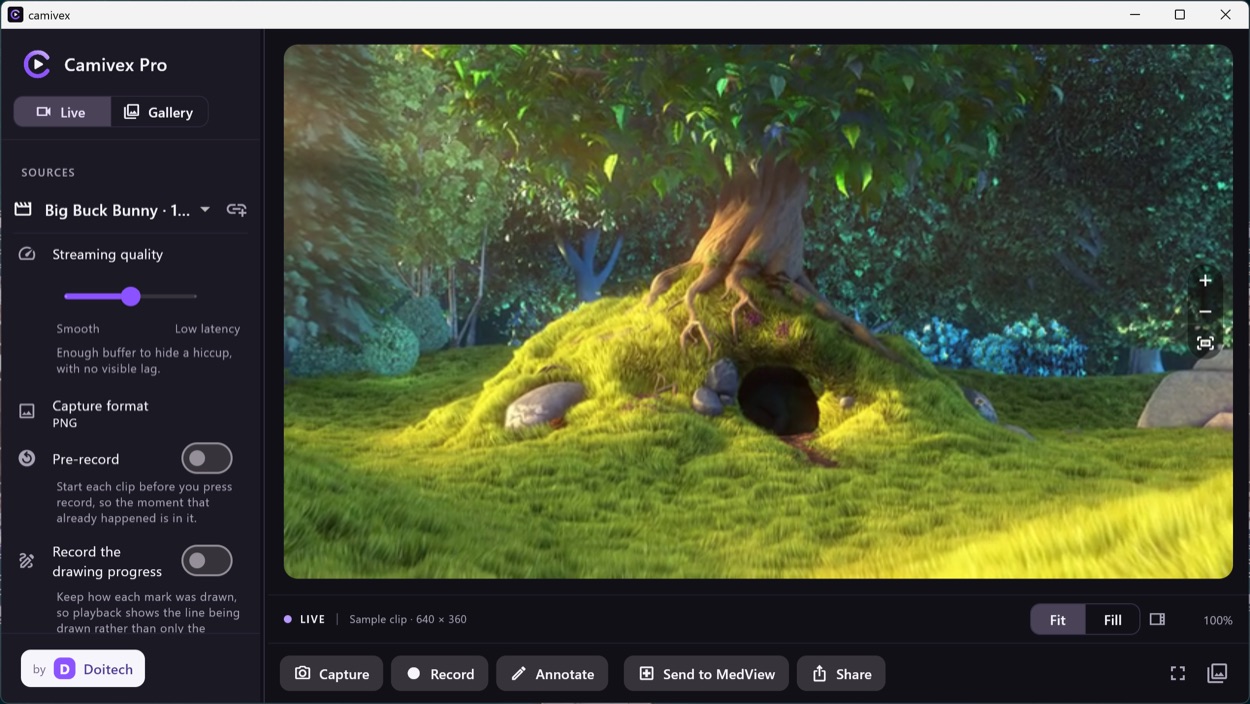
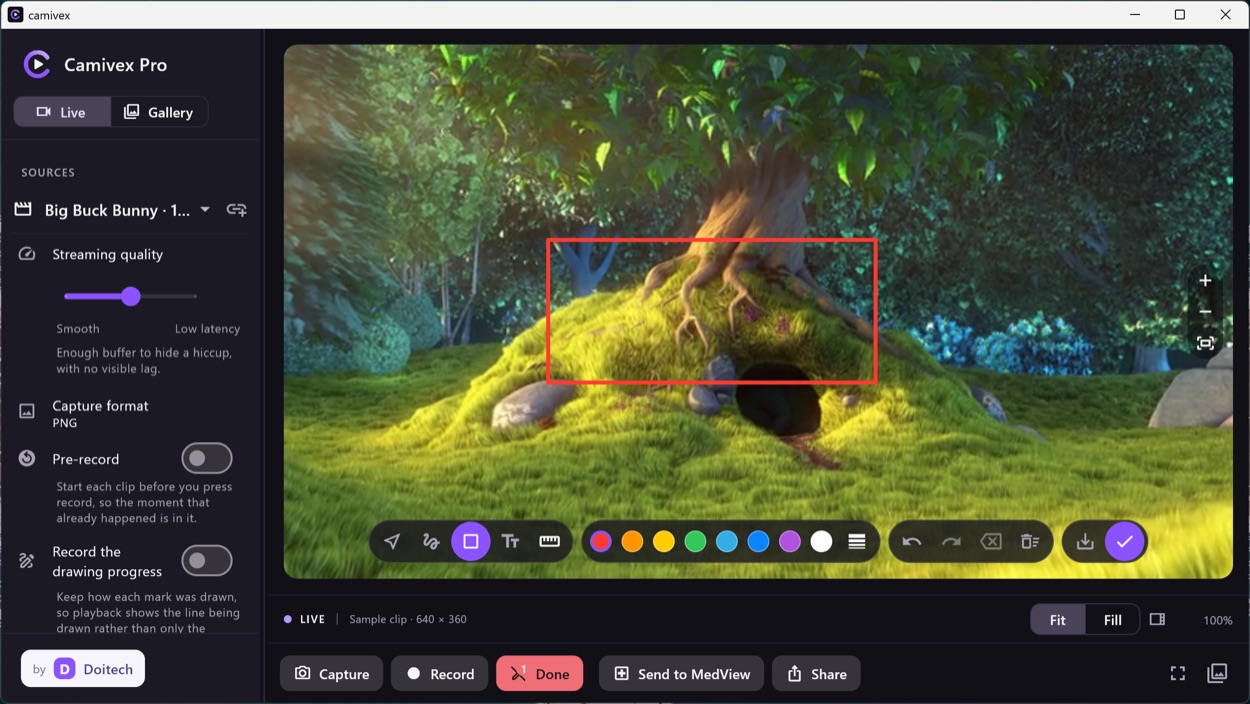
Sources live in a sidebar: built-in and USB web cameras, network (Wi-Fi or RTSP) cameras, and bundled sample streams. The sidebar also carries the pre-record and record-the-drawing toggles, so the live picture keeps the whole window.
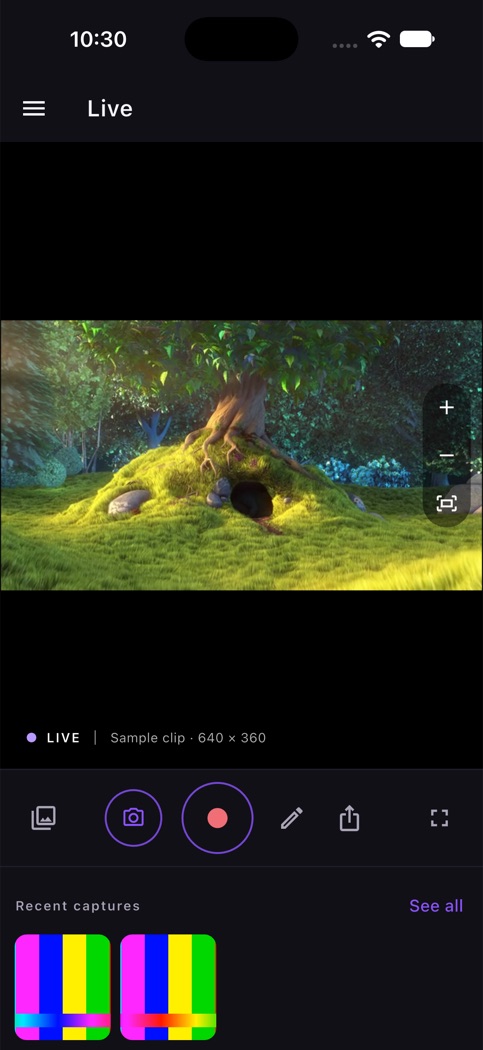
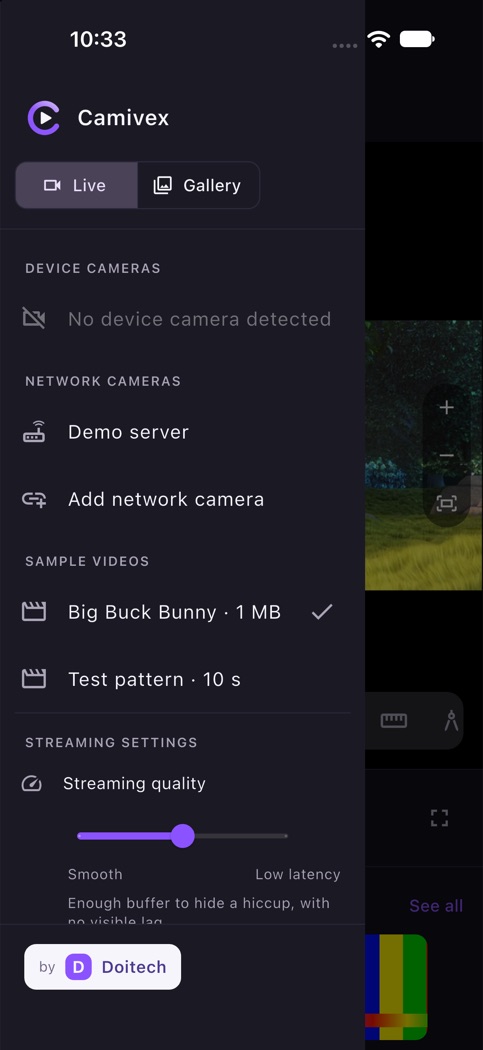
Camivex live view on a phone Camivex camera sources on a phone
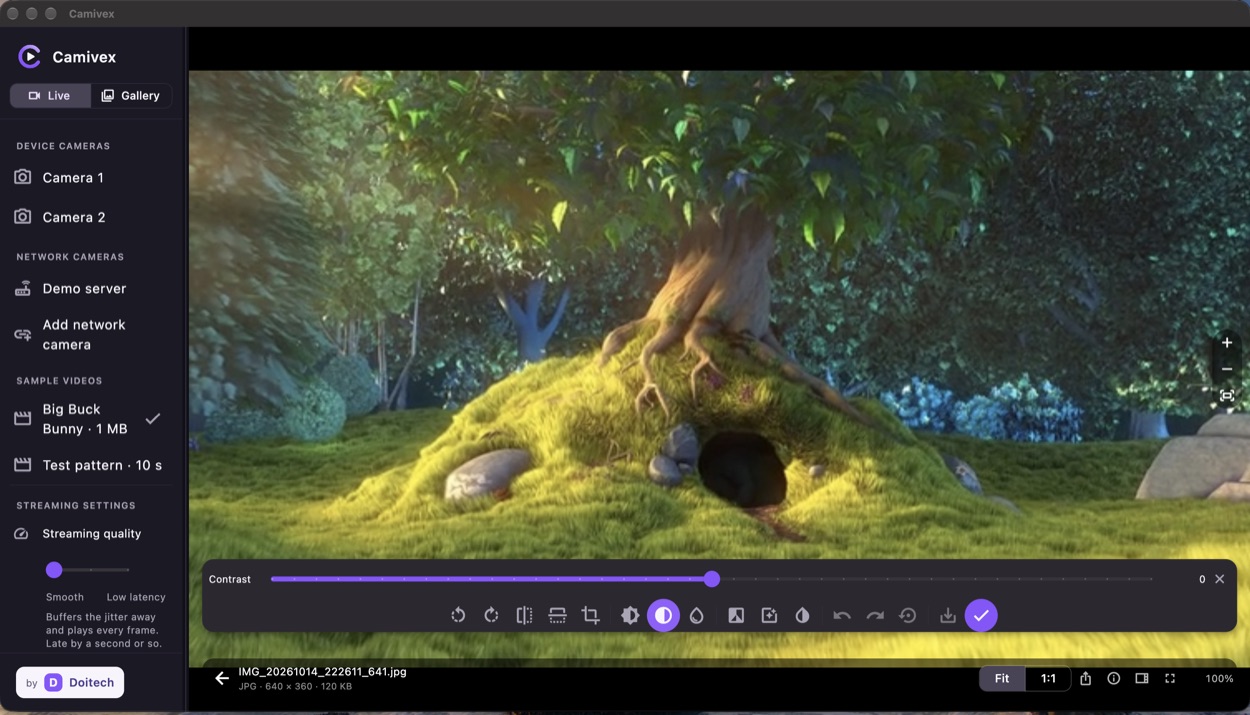
Camivex live view on Windows with the sources sidebar Camivex live view on macOS

Pre-record recording

Start a clip before you press Record and the seconds that already happened are kept, so the moment is not missed.

Turn on Pre-record and each clip begins before you press Record, so the moment that just happened is in it — choose how long to keep. Record the drawing progress keeps every mark, so a clip plays back the drawing being made rather than only the finished picture.

Phone screenshots of the pre-record buffer and its length setting are being captured and will appear here.
Camivex desktop sources panel with Pre-record and Record-drawing-progress toggles

Annotate

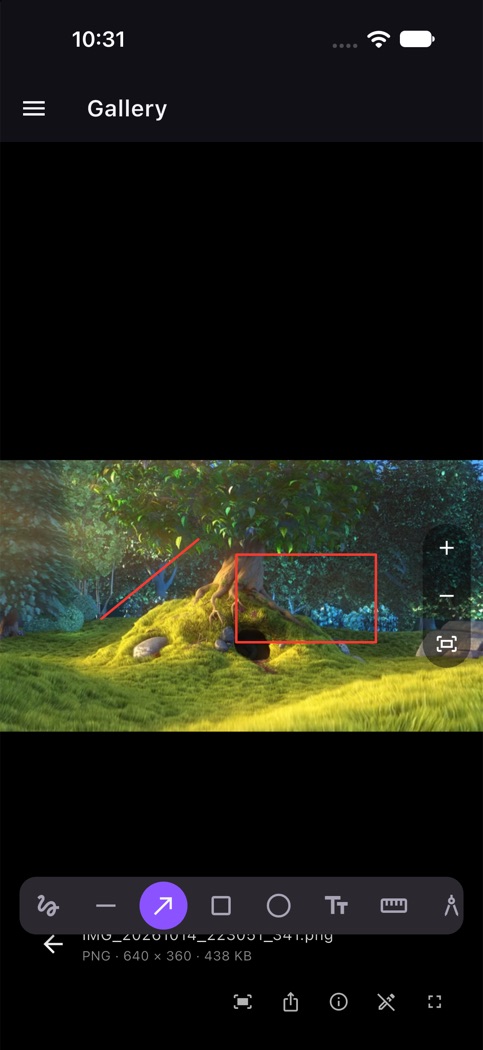
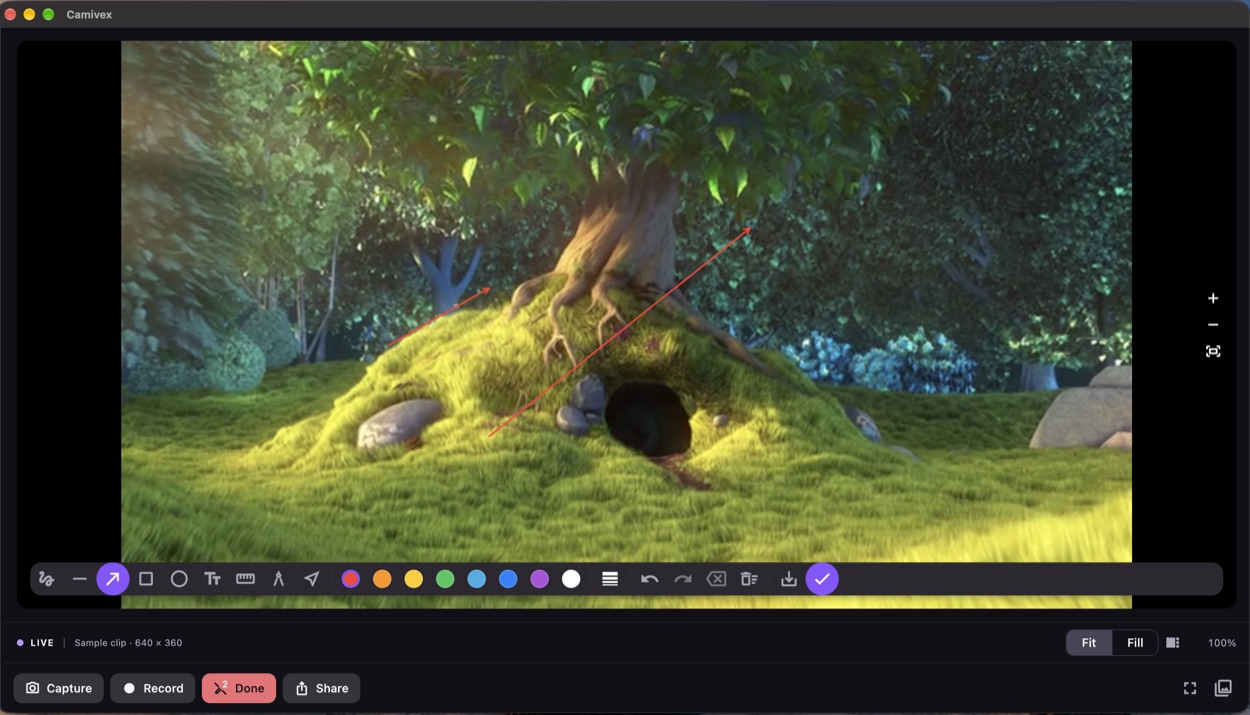
Draw an arrow, a box or freehand marks on the live picture or on a still, then share the frame with the notes on it.

A full drawing toolbar — arrow, box, freehand, text and colour — over the live picture or any capture, with Undo and Done.

Annotating a capture on a phone
Annotating a capture on macOS Annotating a capture on Windows

Library & image tools

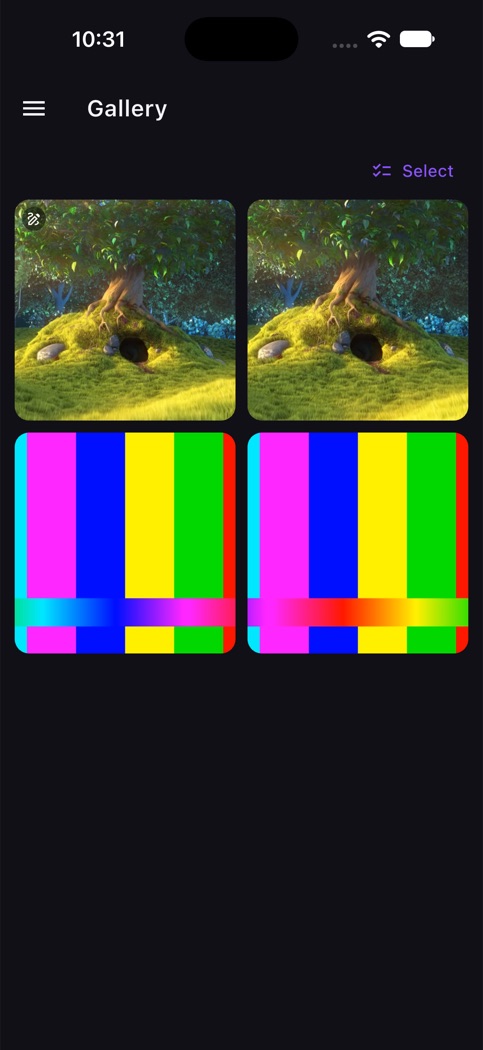
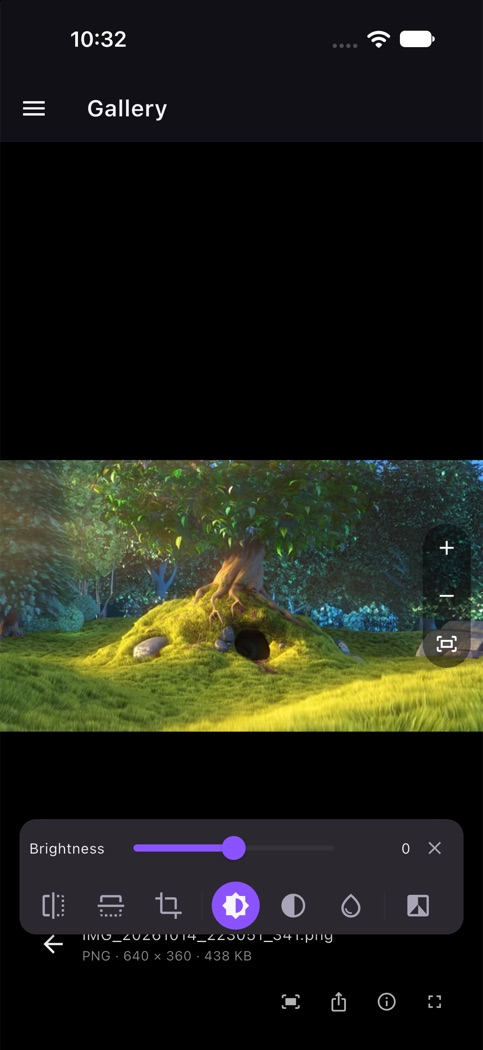
Captures and clips are filed in a grid on the device. Open one to mark it up or to adjust brightness, contrast and saturation before sharing.

The gallery keeps stills and clips together with their file details; open one to light or darken it and to adjust contrast and saturation.

Capture gallery on a phone Adjusting brightness on a phone
Adjusting contrast on macOS

Send to MedView

MedView runs on desktop, so the DICOM hand-off is set up there.

Send chosen captures straight to MedView, which wraps them as DICOM and uploads them to your PACS. With MedView installed, the hand-off opens its upload screen.

Available on Windows and macOS. A capture of the hand-off is coming.
A close-up of the Send to MedView action and the PACS hand-off is being captured and will appear here.

Cloud drives

Keep a copy of your captures in a folder on your cloud drive. Pick or create the folder once and Camivex keeps new captures in sync with it.

Point Camivex at a folder in your cloud drive (Google Drive today). New captures are written into it, so a copy is off the machine without a manual step.

Phone screenshots of the cloud-folder picker are being captured and will appear here.
Desktop screenshots of the cloud-folder picker and sync are being captured and will appear here.

Compare two captures

Put two captures side by side and move them as one, to see whether anything changed between them.

Open two captures side by side and pan or zoom them together to spot exactly what changed.

Phone screenshots of the comparison modes (side by side, aligned pan, overlay) are being captured and will appear here.
Desktop screenshots of the comparison modes (side by side, aligned pan, overlay) are being captured and will appear here.

Screenshots are captures of the running Camivex app on a bundled sample stream.

Download

Camivex for Windows, iPhone, iPad, Mac and Android.

Camivex works with the cameras your device already provides, or with a network camera over RTSP. The App Store version runs on the iPhone, the iPad and Apple silicon Macs. Questions about a particular camera: admin@doitech.com.

What you need

Legal

Camivex is not a certified medical device. It views and records what a camera sends; it is not intended for diagnosis, treatment planning or any purpose that requires regulatory clearance. Do not rely on it alone where a validated clinical system is required, and always check that a recording you need was actually written.